
What happened to the Summit+CityMD app?
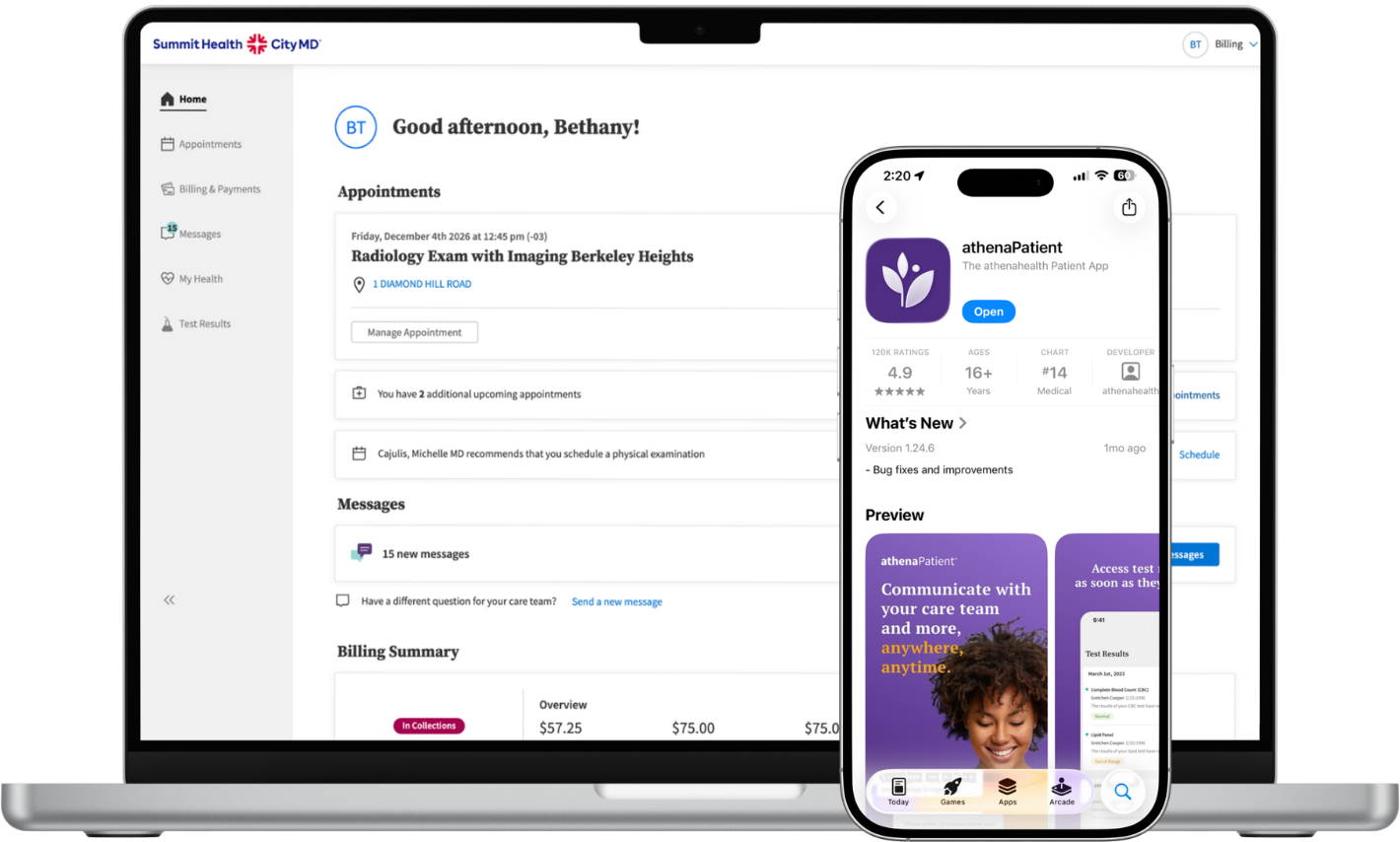
As of April 2026, the Summit+CityMD app is being transitioned to the CityMD urgent care mobile app and will no longer be updated or designed to support the account features of our Summit Health multispecialty patients. As part of this change, lab results, medications, care summaries and provider messaging will no longer be available in the Summit + CityMD app. As an alternative, Summit Health patients should now use the athenaPatient mobile app to help manage their care.
The athenaPatient app is designed to provide Summit Health patients with a better, more seamless mobile experience. It’s fully aligned with our patient portal, powered by athenahealth, allowing you to:
- Easily schedule and manage appointments
- Access lab and imaging test results
- Communicate with your care team
- View and access bills for online payment
By using the athenaPatient app, you’ll have all the tools you need to manage your care in one convenient place.
Patients of healthcare providers on the athenahealth network will have access to athenaPatient. If you have issues accessing your account, please call the Summit Patient Accounts team at 908.790.6500.
To log into athenaPatient, use the email and password for your Patient Portal account. You must have already fully completed the patient portal registration process with Summit Health before you can use the athenaPatient mobile app. If you do not have a Patient Portal account set up or are unsure, contact your Summit Health care team, and they can help you to get access.
If you need help remembering the email associated with your Patient Portal, contact your Summit Health care team, who should be able to help you verify the email address linked to your portal account.
Follow these instructions to reset your password:
- Navigate to your Patient Portal login page or visit https://www.athenahealth.com/patient-login.
- Click the ‘Forgot your Password?’ link.
- Enter the email address you use to log into the Patient Portal and ‘Email me’. You will receive a password reset email.
- Open the email and tap on ‘Create a new password.’ This will open the Create your new password page.
- Enter your new password twice, then click ‘Save and continue’ to confirm it. You will be asked to verify your identity using the security option you selected when you first set up your athenahealth login.
- If the phone number displayed in the message is incorrect (for example, if the phone was lost or discarded), click ‘Cannot verify? Reset your account’ to reset your Patient Portal account.
- Tap ‘Send code.’
- Note: If you do not receive the code within five minutes, check to make sure that the phone number shown in the message is correct. If you’re still having issues, try restarting the phone, make sure you have cellular reception, and then click ‘Send code’ again.
- When you receive the security code on your phone, enter it in the space provided and tap ‘Verify.’
- If you selected a security question when you set up your security option, the following page will appear:
- Enter the answer to your security question.
- Note: The athenahealth account does not distinguish between upper and lowercase letters, but you must enter any spaces or special characters that you included when you created the answer.
- Click ‘Verify.’
- After you verify your identity, the Patient Portal home will open.
- Enter the answer to your security question.
Yes. Tap the settings cog icon in the upper left once logged into the app. Tap ‘View Your Patient Portals.’ This will bring up a list of accounts and settings. Here, you will see a list of all the Patient Portals you have access to. Tap the ‘Visit Web Portal’ button, and an external browser will open with you automatically logged into your selected Patient Portal.
athenahealth is a healthcare software technology company. It creates software that enables medical practices to provide exceptional care to you, your family, and your community. Its software enables healthcare providers to support you in various ways, including helping them maintain and share your patient records securely, allowing you to pay healthcare-related bills online, and allowing you to communicate directly with your care team.
The Patient Portal provides patients with access to personal health information, the ability to manage and schedule appointments, check in online, view test results, and more. The athenaPatient app currently includes some of these capabilities, and will continue to add more as we further develop the app. Initially, athenaPatient offers a convenient mobile solution for staying engaged with your care team(s) and managing your health.
The athenaPatient app does not currently have all the same functionality as your Patient Portal. However, the athenahealth team is actively working to add more features to the app soon.
- For Android devices: athenaPatient requires OS versions 10.x or above.
- For iOS devices: athenaPatient requires OS versions 16.x or above.
From time to time, athenahealth updates the minimum supported OS versions to follow best-in-class security practices, which help to protect your health data.
To schedule an appointment using athenaPatient, your provider must have the self-scheduling feature enabled at their practice.
If available:
- Navigate to the ‘Visits’ screen by clicking the lower-left navigation button labeled 'Visits.’
- If you have no upcoming appointments in the next few days, click the 'Book Visit' button. This will launch a self-scheduling workflow.
- Follow the prompts and schedule your appointment.
Appointment cancellation is not currently available in the athenaPatient mobile app. You will need to log in to the Patient Portal or contact your healthcare provider directly to cancel an appointment. This is a feature enhancement being added to athenaPatient in the future.
If available:
- Navigate to the 'Visits' screen by tapping the lower-left navigation button labeled 'Visits.’ If you have an upcoming appointment in the next few days, it will be listed at the top of the ‘Visits’ screen.
- When an appointment is available for check in, you will see a button on the appointment card labeled 'Check-in.' Tapping this button will launch the self-check-in process.
- Follow the prompts and check in to your appointment.
- If you have already started checking in but haven’t finished, you will see a button on the appointment card labeled 'Continue Checking In.' Tapping this button will continue the check-in process from where you left off.
You can also view the details of an upcoming appointment by tapping the chevron button to the right of an appointment.
- When you tap into the appointment, you will be taken to a detailed view. You can also start or continue the check-in process from here.
If you do not see a ‘Check-in’ or ‘Continue Checking In’ button for a listed appointment, it means the appointment is not available for check-in at this time. You will need to wait until it is closer to the time of your appointment to check in.
- Tap the 'Inbox' icon on the bottom navigation bar. Next, tap the chat bubble in the lower-right corner. This will take you to step-by-step instructions for creating a new message to send to your provider.
- Alternatively, tap on an existing message in either your Inbox or Sent tab views. To see these views, navigate to your Inbox by tapping the ‘Inbox’ icon on the bottom navigation bar. Next, tap on any existing message from the provider you want to contact. This will pull up the most current message thread between you and the provider. In this view, you can see a text box near the bottom of the screen. Tap into the text box to bring up a keyboard and type your reply to the existing message thread. To go back to your Inbox view, tap the left arrow at the top left of the message thread.
Tap the ‘Billing’ icon on the bottom navigation bar. Next, tap on the billing account you’d like to view from the menu. This will load your provider’s secure billing dashboard in a web browser to complete your payment.
Tap ‘Results’ in the bottom navigation bar. This will bring up a list of all the test results you have received. To view the details of any test result, press the card of the result you want to view. This will bring up a detailed view of the result. If you are having issues accessing your test results, contact your healthcare provider’s office for help. Note: your practice will need to publish your results before you are able to view them.
Navigate to the Profile screen by tapping the settings cog at the top left of the screen. From here, you will see a toggle under App Settings titled ‘Face Recognition’ or ‘Fingerprint.’ Toggle this switch to turn biometric authentication on or off.
Please note that the athenaPatient app requires login to the app each time to protect your health information.
Once logged in to the app, tap the settings cog in the upper left corner of the screen. Next, tap the ‘Notifications’ slider to turn it on. To disable notifications, tap the same slider to off.
You will need to ensure your device has granted notification access to the app.
We currently only support the following push notifications:
- Lab and imaging results
- Appointment reminders
- Self check-in/pre-visit process
We plan to roll out additional notifications in the future.
The providers you have access to should automatically connect to your Patient Portal account. You must fully complete the patient portal registration process. If you are missing a provider, it could be because they are not using the athenaPatient app. Contact your practice if you are unable to see your provider’s information.
This can occur when the data systems are undergoing maintenance. Your data should be available again once the systems are updated. In the meantime, you can always log into your Patient Portal using a web browser to check this information.
Yes. You may have access to view information for family members or others you care for if their provider is enabled for the athenaPatient app. For example, a parent would have access to their children’s health data. In this case, the athenaPatient app will show all data for all people you are authorized to access and view.
The app behaves differently than the web version of the Patient Portal. Family member information is mixed in with your information in each section of the app. In the website Patient Portal, you must access your family member’s information by taping the menu in the upper right.
- Tap the settings cog in the upper left of the app.
- Next, tap ‘View Your Patient Portals.’ This will bring up a list of all Patient Portals you have access to. Tap the ‘View Web Portal’ button, and an external browser will open with you logged into your Patient Portal. From here, you can set up access through preferences for those you are a guardian or caregiver to. You can also invite your family members to access your information.
- There are two levels of access you can grant:
• Full Access: Allows you to access all information available on you or your family member’s Patient Portal.
• Billing Access: Allows access to the billing section of you or your family member’s Patient Portal.
If you are an authorized caregiver who needs help accessing a family member’s account, you will need to contact that family member’s healthcare provider for support.
Navigate to the ‘Account’ screen by tapping the settings cog in the upper left of the screen. From there, you will see an option labeled ‘View Your Patient Portals.’ Tapping this will bring up a list of all the Patient Portals you are connected to.
Post-visit summaries are not currently available in the athenaPatient app; you will need to log onto the Patient Portal to review your visit summary.
Navigate to the Account screen by tapping the settings cog in the upper left of the screen. From here, you will see ‘View Your Patient Portals.’ Tapping this will bring up the list of all Patient Portal accounts you are connected to. You will also see other individuals connected to your account that have health records at the listed provider groups.
We recommend trying the following troubleshooting steps:
- Close the app and reopen it
- Reboot your device
- Uninstall and reinstall the app
If you continue to have issues, contact the Summit Patient Accounts team at 908.790.6500.
Stay connected to your care anytime, anywhere
We make it easy with the online portal and athenaPatient mobile app.